
Meta XR Simulator
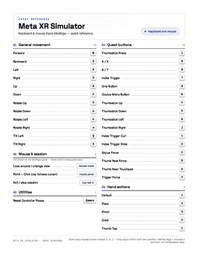
This is a page that covers the Meta XR simulator install in the 418 Labs, covering specific considerations for launching successfully and links to supporting services from Meta.
NOTE: The install of the Meta XR simulator in the labs has been customized to work with our systems, therefore the toggle at the top doesn't work as designed. To enable/disable the runtime you will need to launch the app via the shortcut and close using the window.
Meta XR Simulator is a lightweight OpenXR runtime built for developers and enables you to simulate Meta VR devices and features on the OpenXR API level. More information can be found here: https://developers.meta.com/horizon/downloads/package/meta-xr-simulator-windows/
Meta have also developed an Unreal Engine Plugin to support development with Meta headsets. More info can be found here: https://developers.meta.com/horizon/documentation/unreal/unreal-quick-start-install-metaxr-plugin/ The integration into UE5 needs to be installed from here https://developers.meta.com/horizon/downloads/package/unreal-engine-5-integration/. This Plugin has already been installed into the Labs PCs.
Unreal Engine 5 and Meta XR Simulator
The PC labs have been setup to work with a range of VR headsets, therefore the following steps outline how to setup the PC to work with UE5 and the Meta XR simulator.

- Navigate to the SteamVR folder (C:\Steam\steamapps\common\SteamVR\bin\win64) Alternatively login to steam and launch SteamVR from there.
- Click on vrmonitor.exe to launch SteamVR this should load a grey window
- Turn off the Vive OpenXR API layers. In the SteamVR desktop window, click on the hamburger menu (≡) open Settings → OpenXR → 'MANAGE OPENXR API LAYERS'. A window should popup titled 'Installed OpenXR API Layers' turn off all of the layers see image. These are Vive OpenXR layers that clash with the Meta Simulator.

Turning off OpenXR Layers - Search for Meta XR simulator in the taskbar
- Launch Meta XR simulator this should load into a window.
- SteamVR should now say “Meta XR simulator is OpenXR Runtime.”
- Launch Unreal Engine 5.7 and create a VR Project
- Make sure that the plugins 'OpenXR and MetaXR' are enabled, restart as needed.
- In the dropdown for the play menu, select VR
- With Steam VR and Meta XR Simulator running, click the 'play' button in Unreal engine. You should now be able to control your scene using a mouse and keyboard.
