
Printing: Difference between revisions
No edit summary |
No edit summary |
||
| (One intermediate revision by the same user not shown) | |||
| Line 1: | Line 1: | ||
Printing and plotting facilities can be found in the B418 Collaboration Hub (room 102). Technical support for printing and plotting is generally available Monday- | Printing and plotting facilities can be found in the B418 Collaboration Hub (room 102). Technical support for printing and plotting is generally available Monday-Friday, 8am-4pm. | ||
== Printers & Specifications == | |||
== Specifications == | |||
{| class="wikitable" | {| class="wikitable" | ||
!Type | !Type | ||
| Line 19: | Line 15: | ||
|A0 | |A0 | ||
|} | |} | ||
== Printing Instructions - Office Printers (for A4,A3 prints) == | == Printing Instructions - Office Printers (for A4,A3 prints) == | ||
Curtin students can print documents using the campus printing system. Print jobs can be submitted through '''OASIS''' and collected from most printers using a Student ID. | Curtin students can print documents using the campus printing system. Print jobs can be submitted through '''OASIS''' and collected from most printers using a Student ID. | ||
| Line 34: | Line 24: | ||
==== 2. Ensure you have sufficient print credits before printing. ==== | ==== 2. Ensure you have sufficient print credits before printing. ==== | ||
[[File:Print Credit Screen.jpg|frameless|512x512px]] | <div class="res-img">[[File:Print Credit Screen.jpg|frameless|512x512px]]Additional credits can be purchased through the Payments tab.</div> | ||
==== 3. Upload print file(s) using the Upload Job tab. ==== | ==== 3. Upload print file(s) using the Upload Job tab. ==== | ||
[[File:Print Upload Screen.jpg|frameless|512x512px]] | <div class="res-img">[[File:Print Upload Screen.jpg|frameless|512x512px]]</div> | ||
{{Note | {{Note | ||
| inline = 1 | | inline = 1 | ||
| type = | | type = info | ||
| text = Only A4 and A3 document dimensions in PDF format are supported. Files set to other dimensions will NOT print or will be requested to fit onto A4,A3 formats. | | text = Only A4 and A3 document dimensions in PDF format are supported. Files set to other dimensions will NOT print or will be requested to fit onto A4,A3 formats. | ||
}} | }} | ||
| Line 58: | Line 42: | ||
| text = If printing directly from a Collaboration Hub computer, select either ‘Black’ or ‘Colour’ from the select printer settings before printing. | | text = If printing directly from a Collaboration Hub computer, select either ‘Black’ or ‘Colour’ from the select printer settings before printing. | ||
}} | }} | ||
For guides on how to print on other facilities on campus, please review Curtin's documentation: | |||
{{Clickable button 2|Click Here|url=https://www.curtin.edu.au/students/essentials/it/internet-computers-printing/printing/|class=mw-ui-progressive}} | |||
== Printing Instructions - Plotters (for A0, A1, A2 prints) == | == Printing Instructions - Plotters (for A0, A1, A2 prints) == | ||
| Line 63: | Line 51: | ||
==== 1. Log on to a Collaboration Hub computer, open your print file in Adobe Acrobat, and select Print. ==== | ==== 1. Log on to a Collaboration Hub computer, open your print file in Adobe Acrobat, and select Print. ==== | ||
[[File:Printer_Select_for_Plotter.jpg|frameless|514x514px]] | <div class="res-img">[[File:Printer_Select_for_Plotter.jpg|frameless|514x514px]]</div> | ||
{{Note | {{Note | ||
| inline = 1 | | inline = 1 | ||
| type = | | type = info | ||
| text = Check for any ‘Out of Order’ notices and select an available plotter before proceeding. | | text = Check for any ‘Out of Order’ notices and select an available plotter before proceeding. | ||
}} | }} | ||
Printers to select: | |||
- Curtin 418 Level 1 Plotter A | - Curtin 418 Level 1 Plotter A | ||
- Curtin 418 Level 1 Plotter B | - Curtin 418 Level 1 Plotter B | ||
==== 2. Adjust paper/print settings for required size. ''[[File:Printer Size Settings Screen.jpg|frameless|936x936px]]'' ==== | ==== 2. Adjust paper/print settings for required size. ''<div class="res-img">[[File:Printer Size Settings Screen.jpg|frameless|936x936px]]</div>'' ==== | ||
Position the print quality slider in the middle for optimal colour accuracy, quality, and speed. | |||
==== 3. Make the required payment. ==== | ==== 3. Make the required payment. ==== | ||
[[File:Plotter Payment Screen.jpg|frameless|881x881px]] | <div class="res-img">[[File:Plotter Payment Screen.jpg|frameless|881x881px]]</div> | ||
{{Note | {{Note | ||
Latest revision as of 13:10, 5 October 2026
Printing and plotting facilities can be found in the B418 Collaboration Hub (room 102). Technical support for printing and plotting is generally available Monday-Friday, 8am-4pm.
Printers & Specifications
| Type | Quantity | Printing Size |
|---|---|---|
| Multi-function Printers | 4 | A4-A3 |
| Plotters | 2 | A0 |
Printing Instructions - Office Printers (for A4,A3 prints)
Curtin students can print documents using the campus printing system. Print jobs can be submitted through OASIS and collected from most printers using a Student ID.
Uploading a Print Job

2. Ensure you have sufficient print credits before printing.
 Additional credits can be purchased through the Payments tab.
3. Upload print file(s) using the Upload Job tab.

4. Access the printers to print your uploads
After uploading your documents, logon to any printing machine using your Student ID to access and print your files.
For guides on how to print on other facilities on campus, please review Curtin's documentation:
Printing Instructions - Plotters (for A0, A1, A2 prints)
Curtin students can use the plotters to produce large-format prints through the Collaboration Hub computers.
1. Log on to a Collaboration Hub computer, open your print file in Adobe Acrobat, and select Print.

Printers to select:
- Curtin 418 Level 1 Plotter A
- Curtin 418 Level 1 Plotter B
2. Adjust paper/print settings for required size. 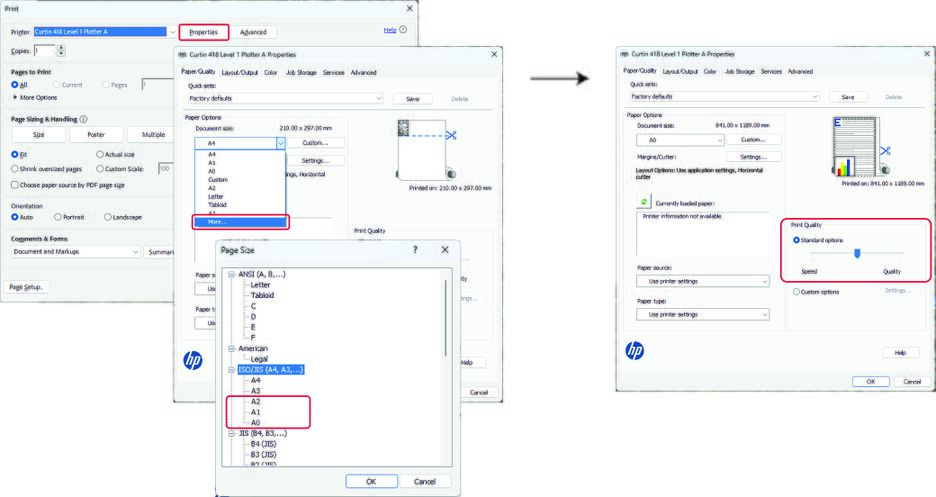

Position the print quality slider in the middle for optimal colour accuracy, quality, and speed.
3. Make the required payment.
